
Daily digest: from new papers to a closer look at 3I/ATLAS
Want a paper selection tailored to your research? Start by creating your daily digest, then see how the morning announcements can lead to a closer reading of interstellar comet 3I/ATLAS.
This guide first walks through the form, block by block, then follows an actual 28 October 2026 edition. Screenshots use the English interface and generated summaries; scientific titles and figure captions retain their original language.
Create your digest: complete the form step by step
Open the daily digest and sign in. For your first digest, the creation form opens directly. If you already have a digest and your plan allows another one, choose “+ New digest”. To edit an existing selection, open its tab instead.
A simple setup needs at least one category, your preferred summary format and language, and a frequency, delivery time and time zone. Keywords, ORCID and the Premium research settings are optional. Here is how to work through the form in order.
1. Name the feed and choose a starting point
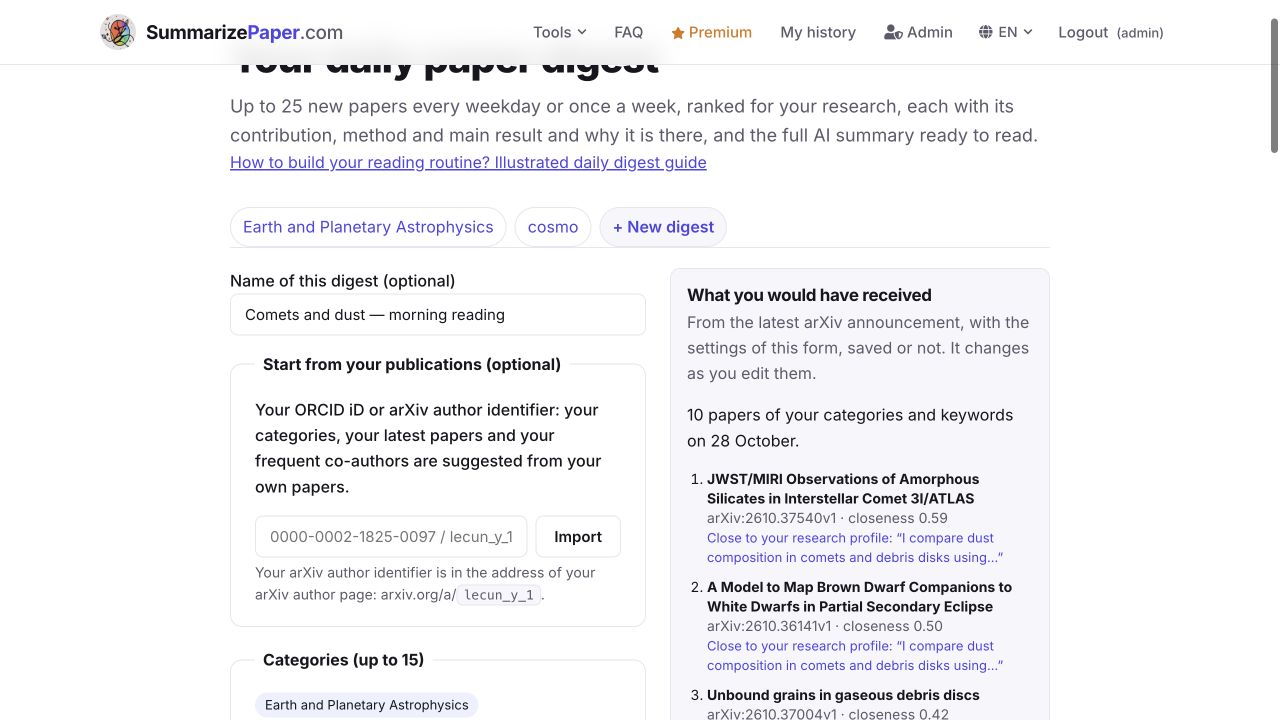
With Premium, “Name of this digest” helps distinguish multiple feeds, such as “Comets and dust — morning reading”. The name is optional.
“Start from your publications” is optional too. Enter your ORCID iD or arXiv author identifier and choose “Import” if you want suggestions based on your publications. Review those suggestions before proceeding. You can also leave this field empty and select your fields manually, as in this walkthrough.
2. Select at least one category and check the preview
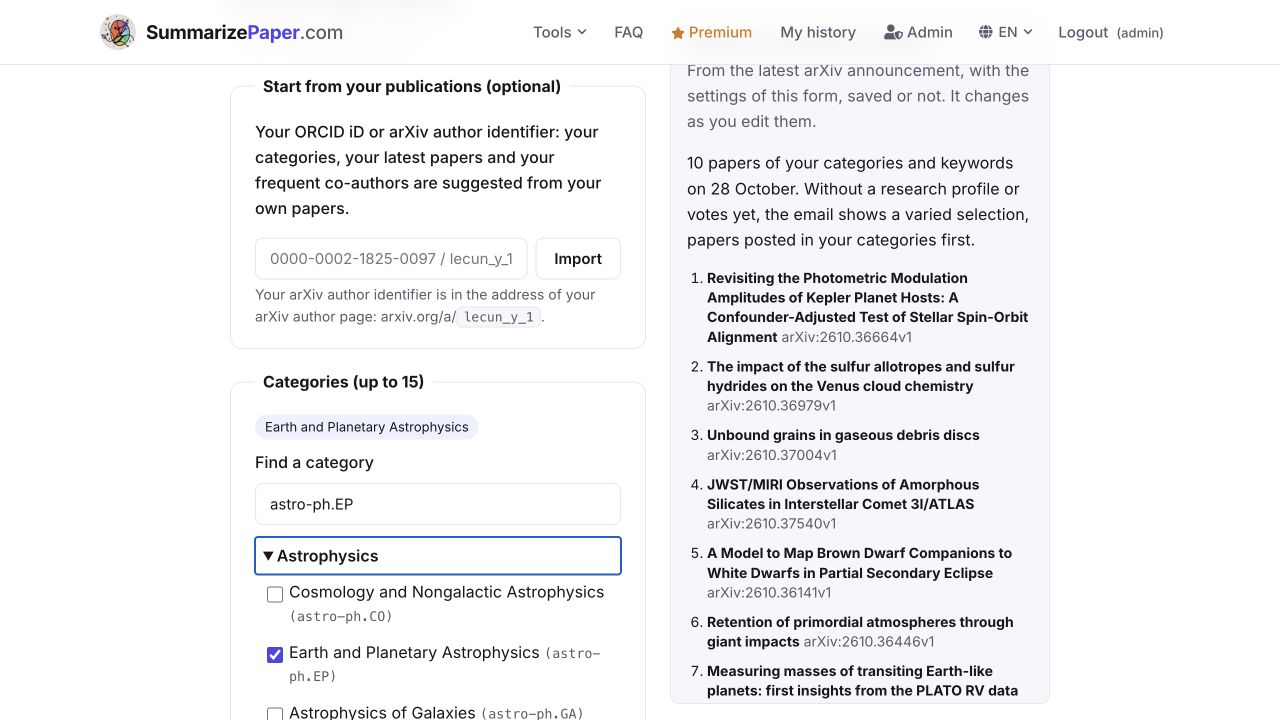
Under “Find a category”, enter a field or category code, then tick the matching checkbox. Typing in the search field finds categories; it does not select one. To follow this example, search for astro-ph.EP and tick “Earth and Planetary Astrophysics”.
arXiv categories are grouped by discipline. The form also offers bioRxiv and medRxiv fields, followed by journal subfields and other preprint sources. Start with a scope you can realistically read rather than selecting everything.
“What you would have received” previews the latest arXiv announcement using your settings and changes as you edit them. In our 28 October example, without a research profile or feedback, ten papers appear. This is a snapshot of that announcement, not a guaranteed daily quantity.
3. Add optional keywords and choose a summary format
Leave “Keywords” empty to discover the whole selected field. For a narrower comet feed, enter comet, a term used in the scientific sources. Without a research profile, the tool keeps papers mentioning at least one requested word: here the selection changes from 10 papers to 1, the JWST study of 3I/ATLAS.
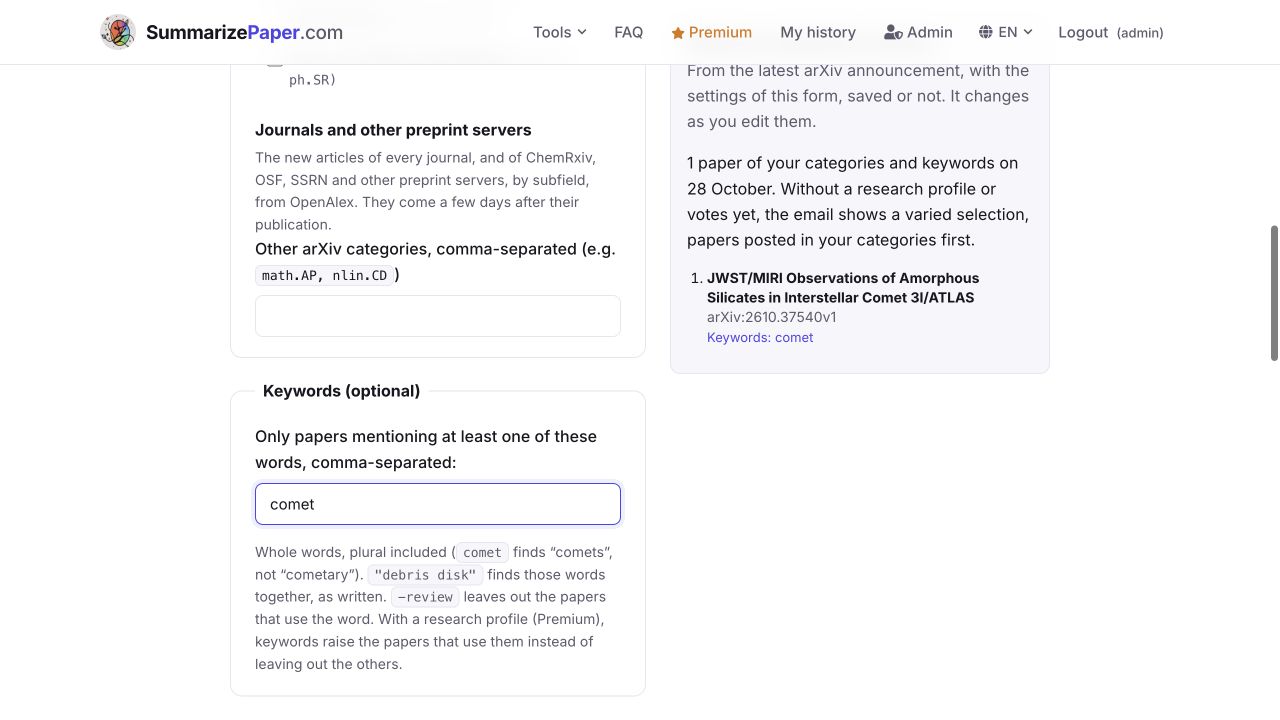
Commas separate alternatives: comet, silicate broadens the selection. Quotation marks match an exact phrase, and -review excludes papers using that word. If the preview is empty, remove a constraint first.
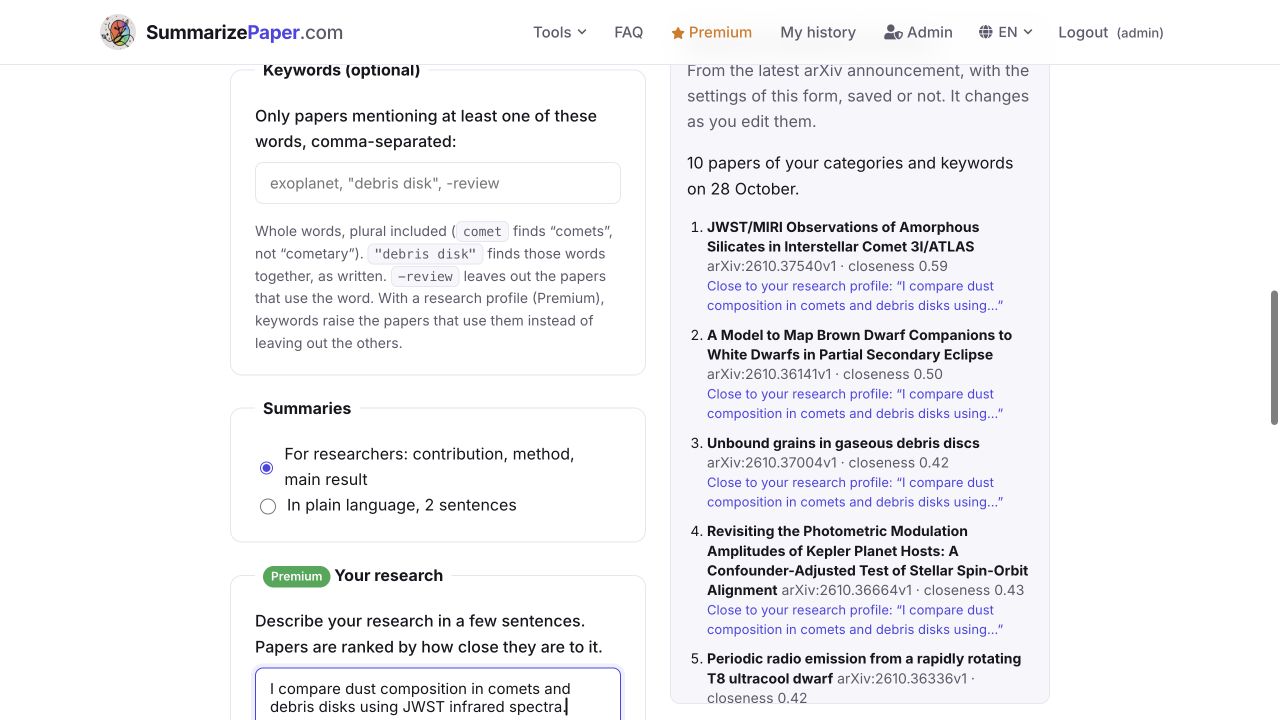
Under “Summaries”, choose “For researchers: contribution, method, main result” to assess the work, or “In plain language, 2 sentences” for an initial introduction. The language is selected separately further down the form.
4. With Premium, personalize ranking and reading volume
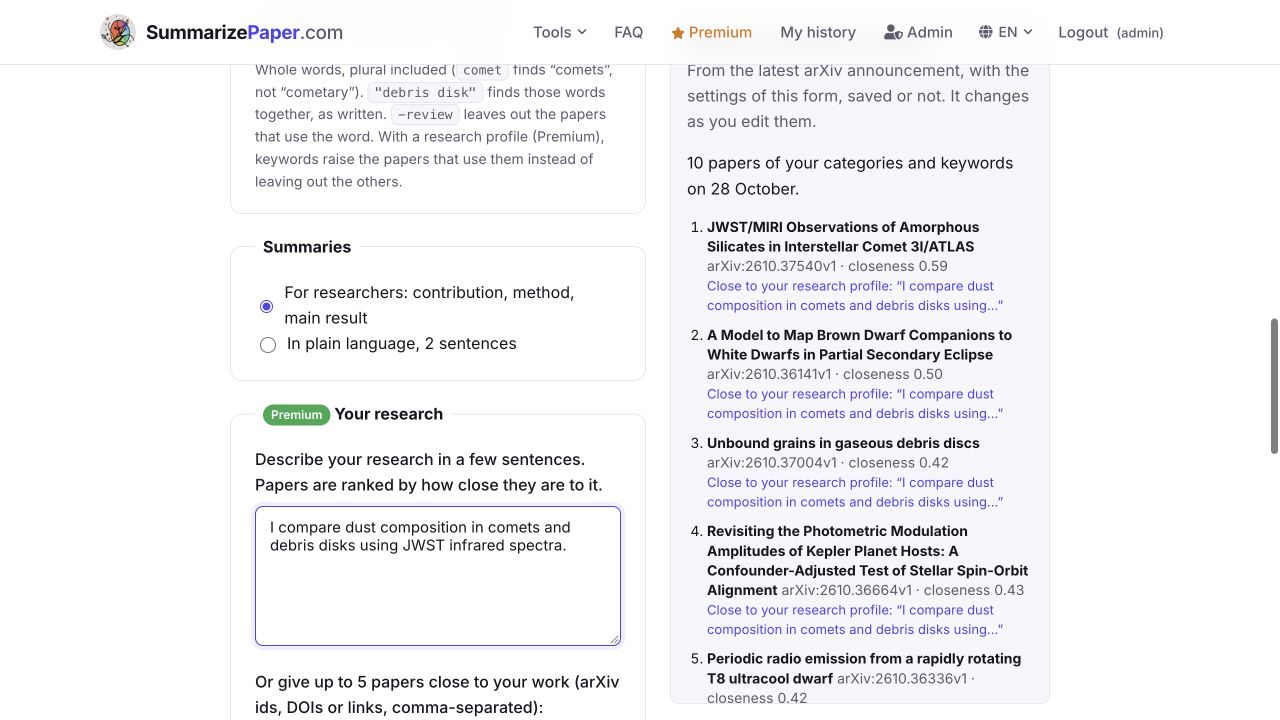
Skip to the next step if you want to start with a category-based feed. With Premium, “Your research” lets you describe a project in a few sentences:
I compare dust composition in comets and debris disks using JWST infrared spectra.
For this trial, clear the keyword comet to broaden the selection again. With this profile, all ten papers remain, but the 3I/ATLAS paper moves to first place. Each line explains its connection to the profile.
Use the following fields to refine that personalization:
| Field | What to enter |
|---|---|
| Papers close to your work | Add arXiv identifiers, DOIs or links separated by commas, or use the title search. Example: 2610.37540v1. |
| Authors to follow | Enter names separated by commas to follow their new papers across categories. Example: Cristina A. Thomas. |
| How many papers | Start with the suggested fixed maximum, or choose a strict, normal or broad closeness threshold with a research profile. |
| Put alerts in this digest | Select this if you want scoop, citation, version and publication alerts in the digest rather than separate emails. |
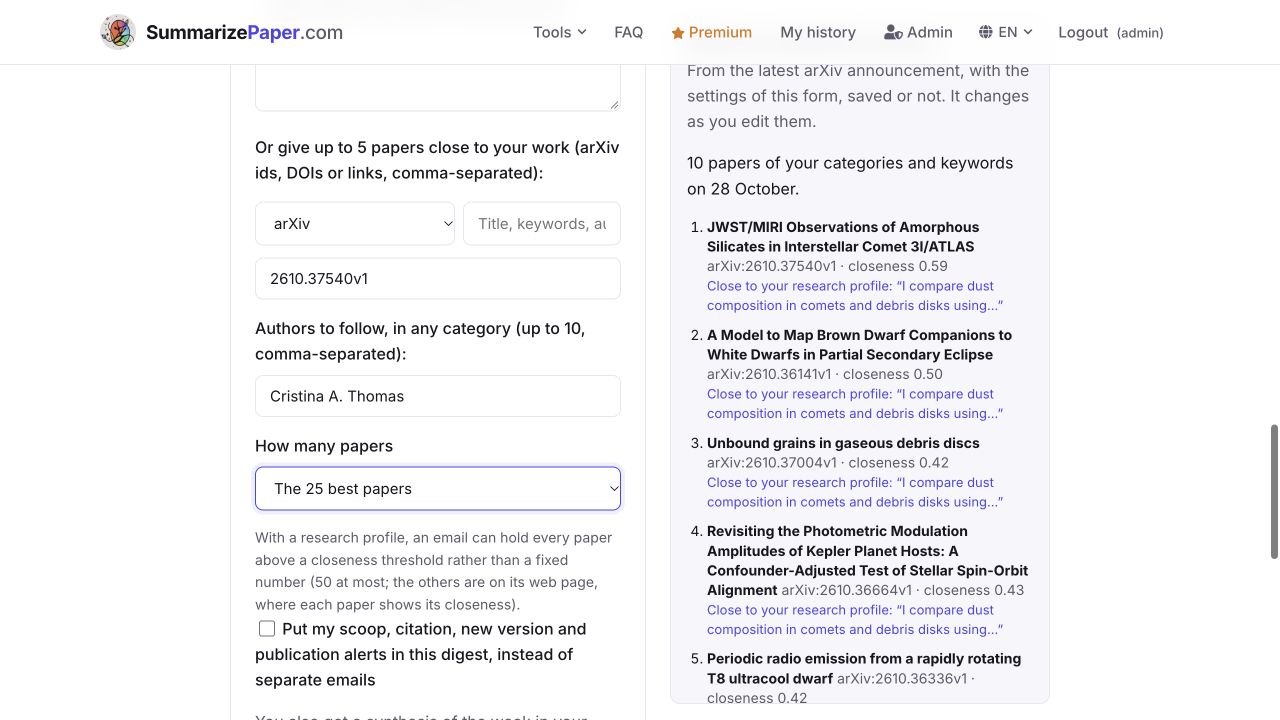
With a research profile, keywords boost matching papers instead of excluding all the others. Closeness reflects your interests; it is not a scientific-quality score. A fixed volume is a maximum, not a promise to receive that many papers in each email.
5. Choose the language, frequency and delivery time
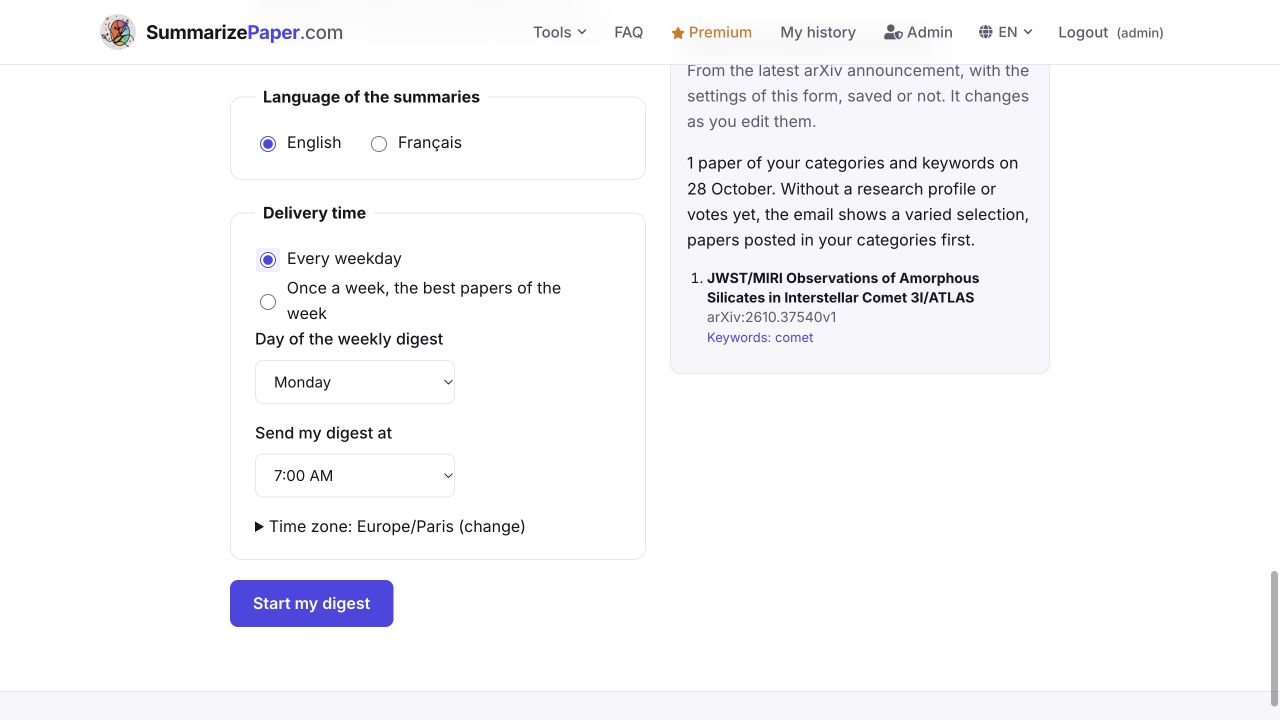
Select English under “Language of the summaries”. Under “Delivery time”, choose “Every weekday” or “Once a week”; for the latter, also choose the weekly delivery day. Set the time and check the time zone, opening “Time zone … (change)” if needed.
Our reading routine uses every weekday at 7:00 AM, Europe/Paris. The weekly-day setting only applies to weekly delivery. Changing the website language does not translate an edition already prepared: its generated summaries use the language chosen for the digest.
6. Submit with “Start my digest”
Before submitting, check that a category is selected, that the preview matches your interests, and that the language, frequency, time and time zone suit you. Then choose “Start my digest”: your settings are saved and delivery is scheduled to your account's email address.
To change it later, return to its tab and choose “Save” after editing. “Send me a preview now”, available on a saved digest, requests a test email. It is separate from the interactive preview on the right of the form.
Read an edition: what does this paper contribute?
Once your digest arrives, open its web page. Here is an actual 28 October edition containing ten papers.
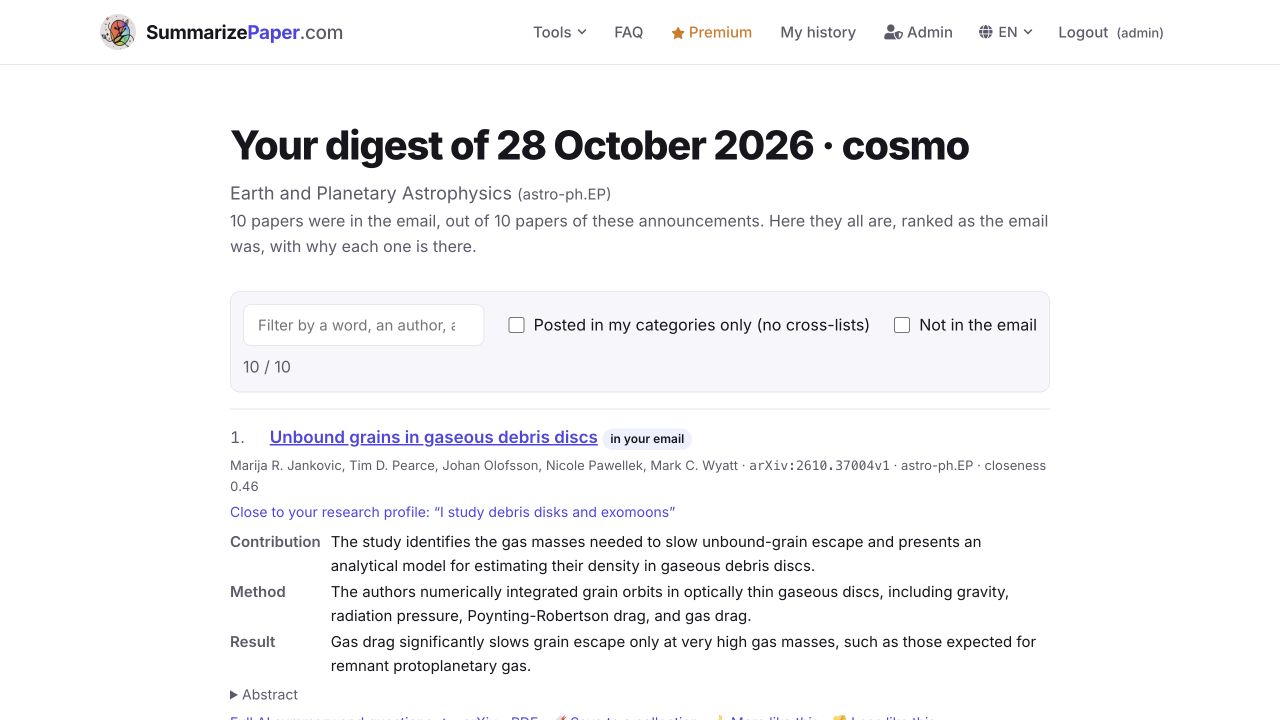
Search for 3I/ATLAS: the counter shows 1 / 10. This search only filters this edition’s display; it does not change the subscription.
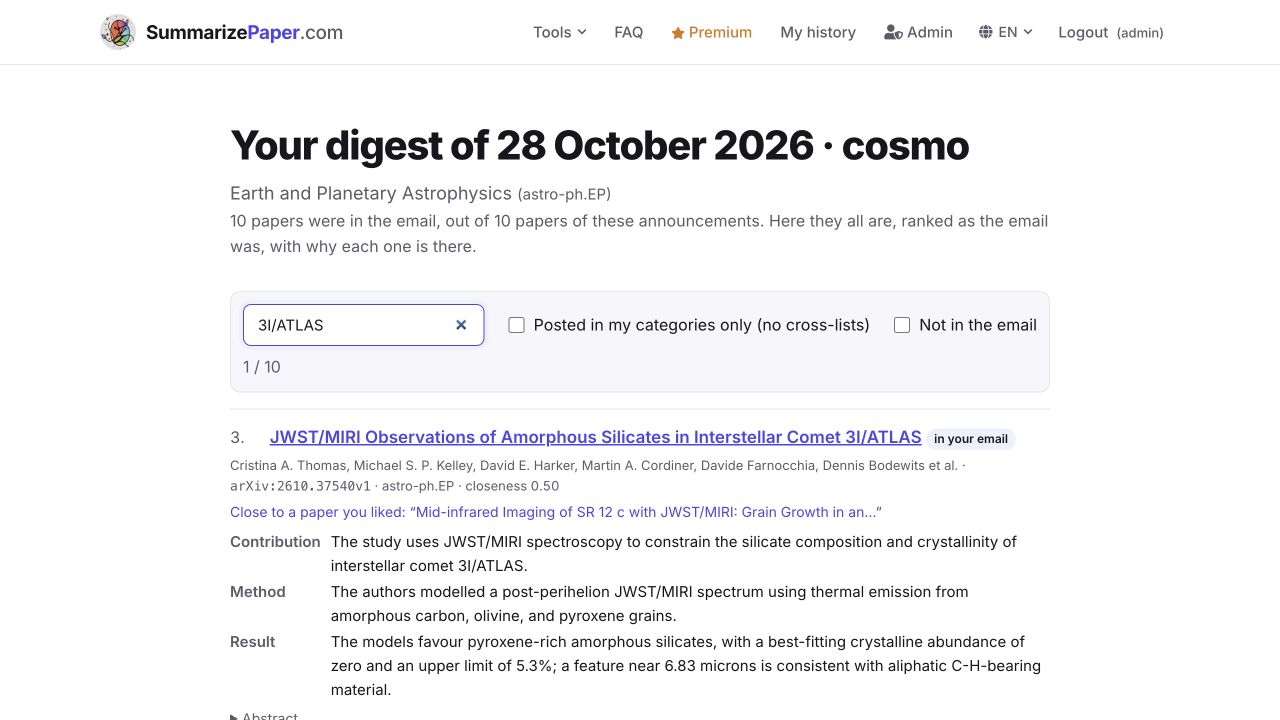
The brief offers a reason to keep reading: JWST/MIRI observations, dust modelling and a constraint on crystalline material. “More like this” and “Less like this” help guide future selections. Use them to express interest in the topic, independently of whether you agree with the conclusions.
Expand “Abstract” to compare the brief with the original scientific abstract. The digest’s short summaries are generated from that abstract for initial triage. They do not imply that every paper’s full text was analysed for the digest.
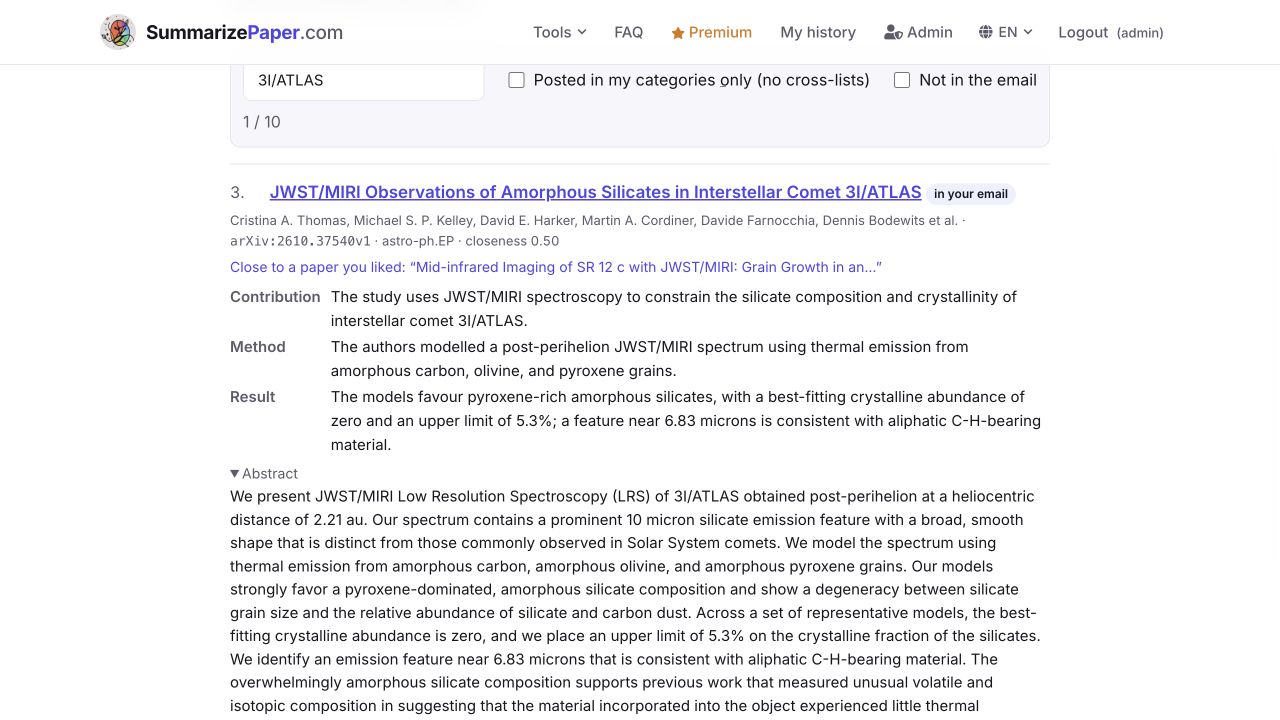
Follow the morning lead into the full text and figures
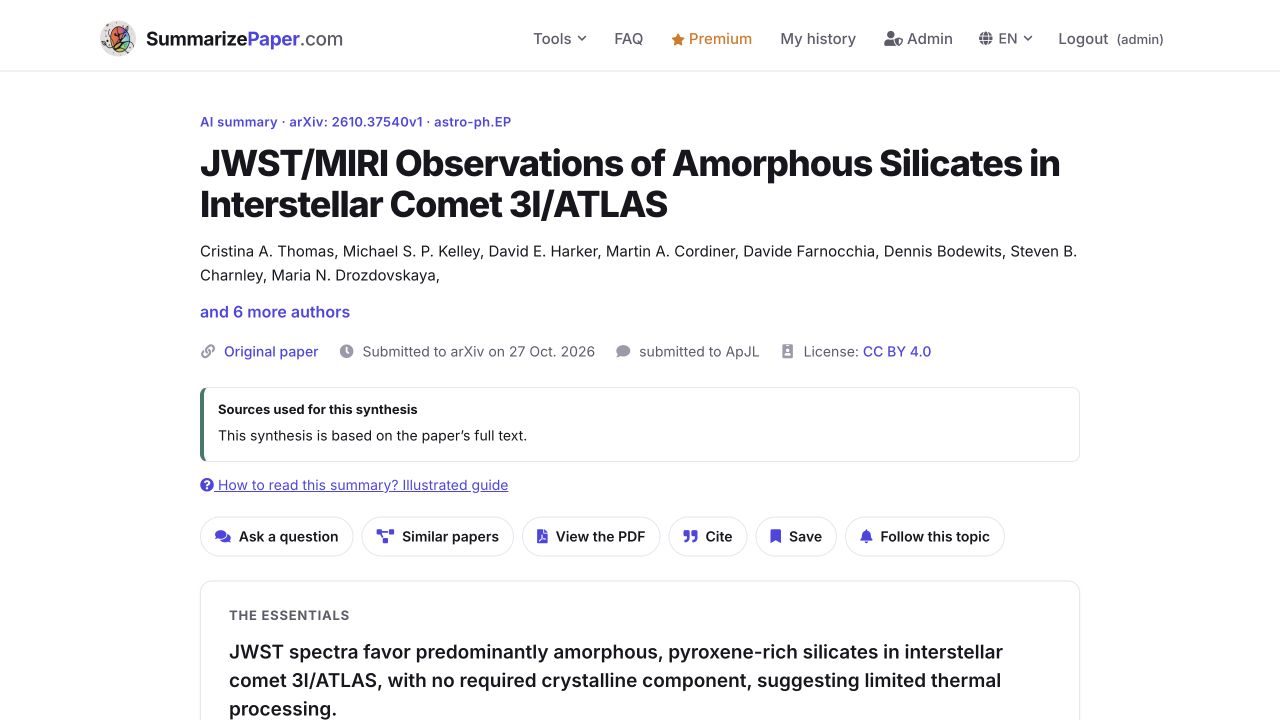
Choose “Full AI summary and questions”. Our example is JWST/MIRI Observations of Amorphous Silicates in Interstellar Comet 3I/ATLAS, by Cristina A. Thomas and colleagues: a preprint submitted to arXiv on 27 October 2026, licensed CC BY 4.0. “Submitted to ApJL” describes a journal submission, not an accepted journal publication.
The source banner confirms a synthesis based on the full text. Check that banner for each paper: another licence or an unavailable full text can limit analysis to the abstract.
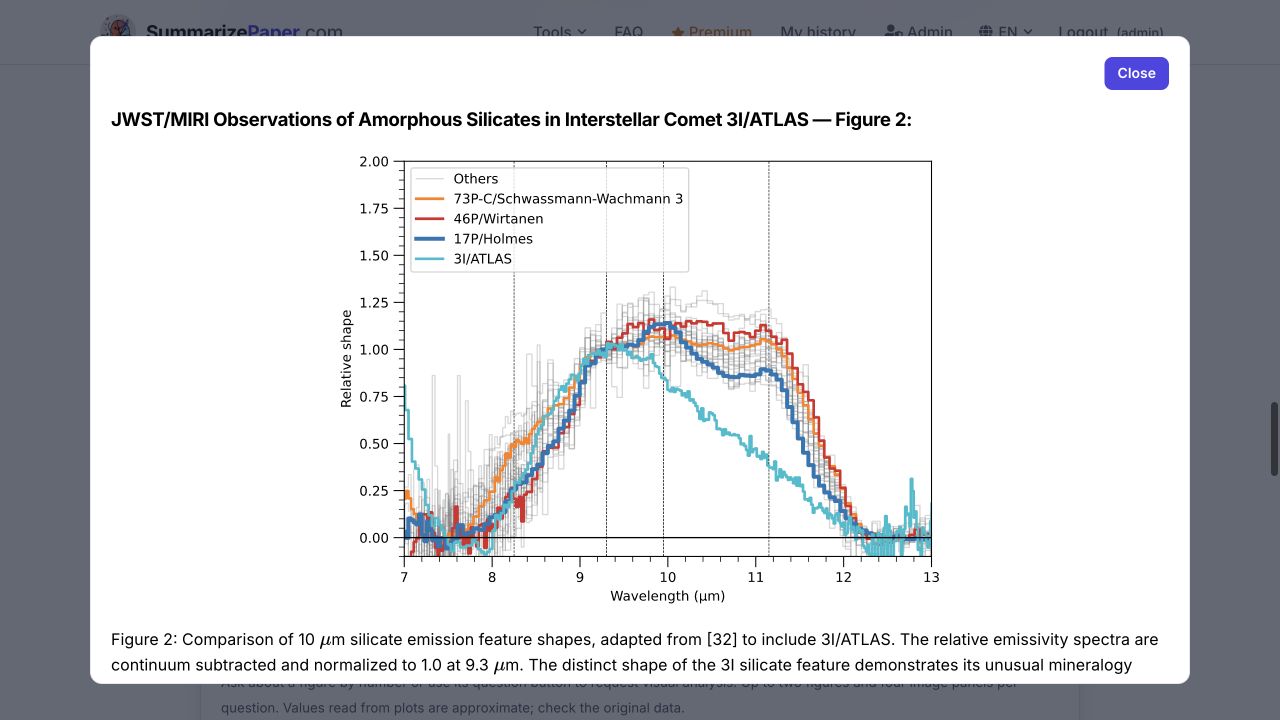
Open “Figures and plots” to access all four figures. Enlarge Figure 2 to compare the spectrum of 3I/ATLAS with those of Solar System comets. Its smooth emission feature around 10 µm helps explain the authors’ interpretation.
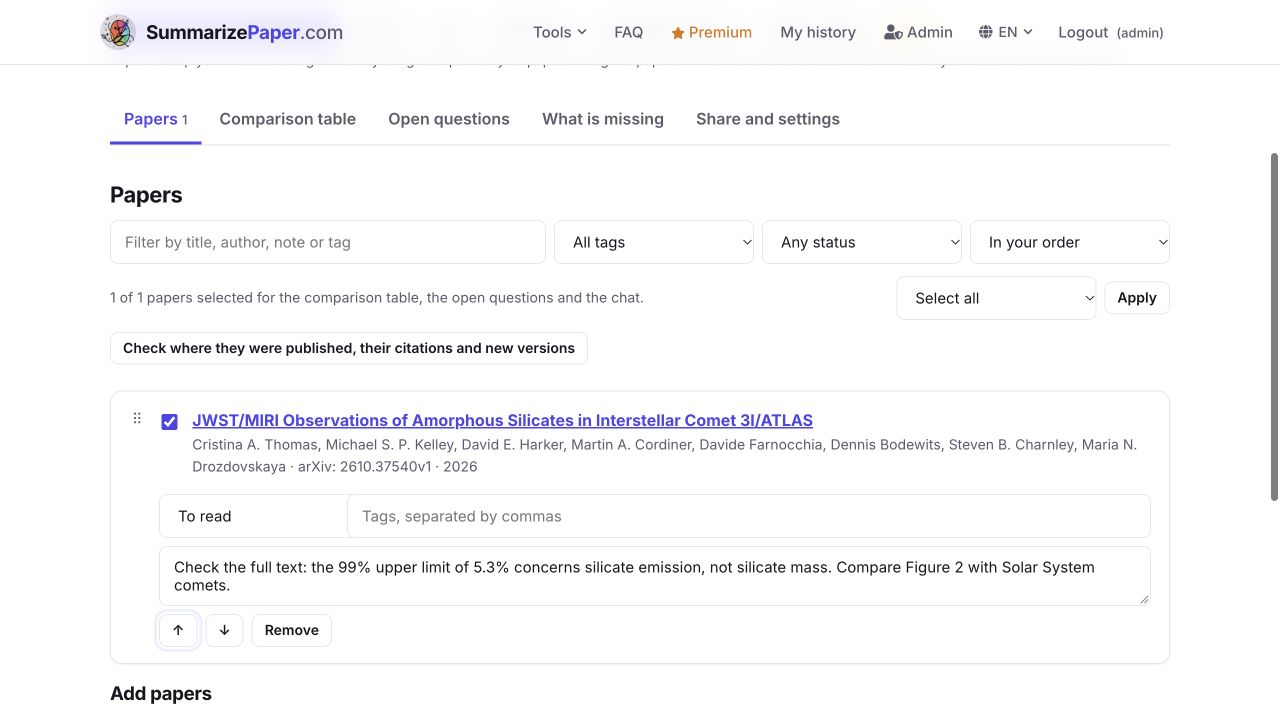
One detail deserves a reading note: in the authors’ full text, the 99% upper limit of 5.3% constrains the fraction of silicate emission, not directly the silicate mass. This is exactly the kind of qualification to check after scanning the digest. Continue with reading summaries and their sources or asking a question about one paper.
Save a reading task, with a reason to return
From the digest brief, choose “Save to a collection”. Select an existing folder or create “To read — Dust and small bodies”.
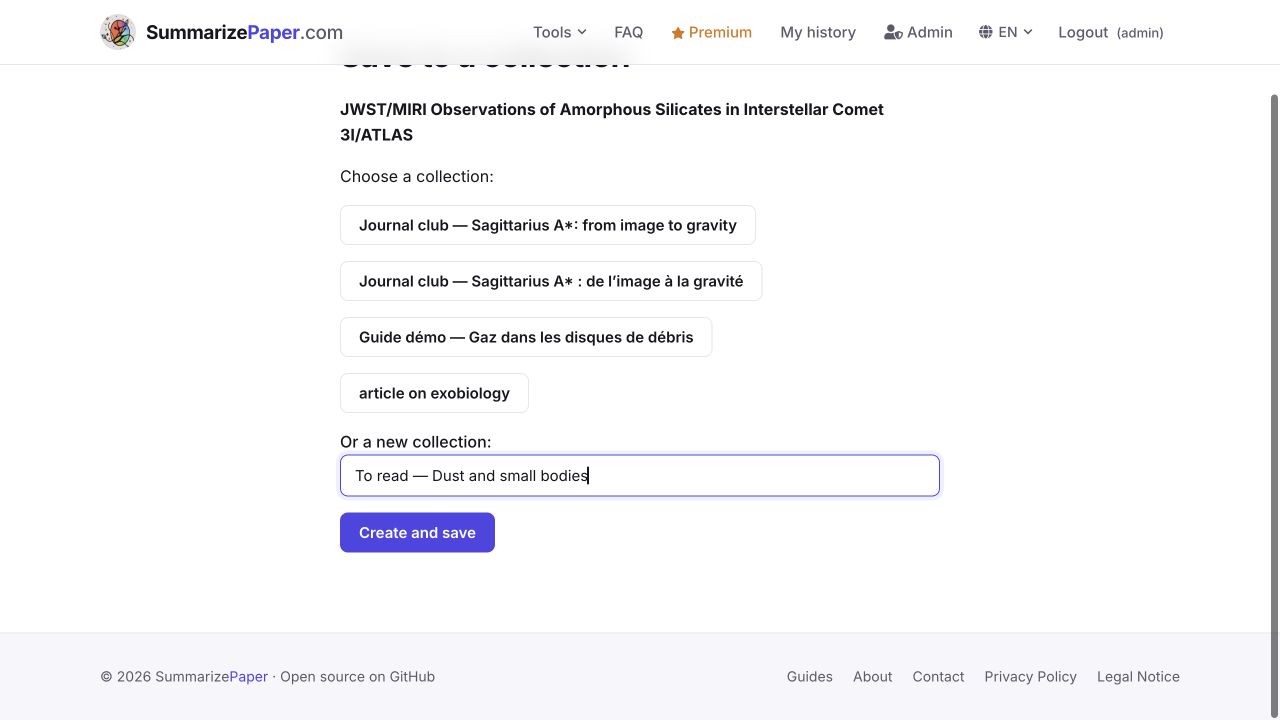
We actually saved the paper, marked it “To read” and added a note about the 5.3% limit and the Figure 2 comparison. The note and status were checked after reloading.
A useful routine has three steps: scan the contributions, open a useful source, keep a question. To turn several readings into a working research folder, continue with the Collections guide.
Build your next reading selection
Set up my daily digest